Google for WooCommerce vs Feed Plugins: Which Should You Use?
Compare Google's official WooCommerce plugin with feed-based alternatives. Learn when to use each approach and why many stores use both.

If you’ve set up WooCommerce recently, you’ve probably seen “Google for WooCommerce” recommended during onboarding. It’s the official plugin built by WooCommerce and Google. But is it the right choice for your store?
This guide compares Google’s official plugin with feed-based alternatives to help you decide.
What is Google for WooCommerce?
Google for WooCommerce (formerly Google Listings & Ads) is the official native integration between WooCommerce and Google. It’s recommended during WooCommerce setup and promises to “connect your store and reach millions of shoppers on Google.”
What It Does
- Syncs products directly to Google Merchant Center via API
- Enables free product listings on Google Shopping
- Lets you run Google Ads campaigns from WooCommerce dashboard
- Supports Performance Max campaigns
The Requirements
- WordPress.com/Jetpack connection required - your store must connect to WordPress.com services
- Google Merchant Center account
- Google Ads account (for paid campaigns)
The Problem: No GTIN Fields
Here’s what most people don’t realize: Google for WooCommerce doesn’t add GTIN, Brand, or MPN fields to your products.
These product identifiers are essential for Google Shopping. Without GTINs:
- Products may be disapproved
- Products may not appear in Shopping results
- You’ll see warnings in Google Merchant Center
So even if you use Google for WooCommerce, you still need another plugin to add GTIN fields to your products.
Two Different Approaches
Approach 1: API Sync (Google for WooCommerce)
WooCommerce → API → Google Merchant Center- Products sync directly via Google’s API
- No feed file to manage
- Requires WordPress.com connection
- Google-only (no other channels)
Approach 2: Feed File (WooPlugin and others)
WooCommerce → XML Feed File → Upload URL to Google- Plugin generates an XML feed file
- You give Google the feed URL
- No external connections required
- Works with any platform (Google, Facebook, Pinterest, etc.)
Head-to-Head Comparison
| Feature | Google for WooCommerce | WooPlugin (Feed-Based) |
|---|---|---|
| Price | Free | Free (Pro $79/yr) |
| GTIN/Brand/MPN Fields | ❌ No | ✅ Yes (Free) |
| Google Shopping | ✅ Yes | ✅ Yes |
| Facebook/Meta | ❌ No | ✅ Yes (Pro) |
| ❌ No | ✅ Yes (Pro) | |
| TikTok | ❌ No | ✅ Yes (Pro) |
| External Connection | Required (Jetpack) | Not required |
| Feed Control | Limited | Full control |
| Inspect/Debug Feed | Difficult | Easy (XML file) |
| Google Ads Integration | ✅ Built-in | ❌ No |
| Multi-Currency | Limited | Supported |
Known Issues with Google for WooCommerce
From WordPress.org support forums and GitHub:
Sync Problems
“Products not syncing after changes. Changed images and prices, but Google still shows old data. Even force sync doesn’t work.”
Dashboard Accuracy
“Shows ‘No products added’ despite 226 products being active in Merchant Center.”
Connection Issues
“If the Jetpack connection breaks, the whole plugin stops working.”
Shipping Errors
“The plugin does not support ‘Locations not covered by other zones’, causing missing shipping information errors.”
Why Many Stores Use Both
A common setup is to use both plugins together:
-
WooPlugin for:
- GTIN, Brand, MPN fields (Google for WooCommerce doesn’t have these)
- Multi-channel feeds (Facebook, Pinterest, TikTok)
- Backup feed file you can control
-
Google for WooCommerce for:
- Google Ads campaign management from WooCommerce
- Performance Max campaigns
This gives you the best of both worlds: product identifiers and multi-channel from WooPlugin, plus Google Ads integration from the official plugin.
When to Use Google for WooCommerce
Choose Google for WooCommerce if:
- ✅ You’re already using Jetpack/WordPress.com services
- ✅ You want to run Google Ads from WooCommerce dashboard
- ✅ You only need Google (no Facebook, Pinterest, etc.)
- ✅ You’ll use a separate plugin for GTIN fields
- ✅ You don’t mind external service connections
When to Use a Feed Plugin Instead
Choose a feed-based plugin like WooPlugin if:
- ✅ You need GTIN, Brand, MPN fields
- ✅ You want multi-channel support (Facebook, Pinterest, TikTok)
- ✅ You prefer no external connections (self-hosted)
- ✅ You want to inspect and control your feed
- ✅ You’ve had sync issues with the official plugin
- ✅ You need multi-currency support
Why Feed Files Are Often Better
1. Full Control
With a feed file, you can:
- Open it and see exactly what’s being sent to Google
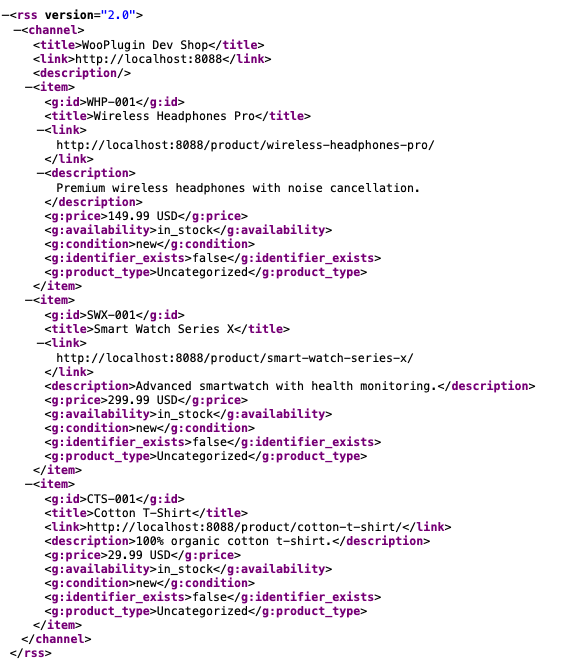 You can inspect the XML feed file to see exactly what data is sent to Google
- Debug issues by inspecting the XML
- Customize fields and values
- Use the same feed for multiple platforms
2. No External Dependencies
Feed-based plugins don’t require:
- WordPress.com account
- Jetpack connection
- External API calls
Your feed is generated locally and hosted on your server.
3. Multi-Channel Ready
The same feed approach works for:
- Google Shopping
- Facebook/Meta Catalog
- TikTok Shop
- Bing Shopping
- Snapchat
Google for WooCommerce only supports Google.
4. Reliability
Feed files don’t have the sync issues reported with API-based solutions. If something’s wrong, you can see it in the XML file and fix it.
Quick Recommendation
For Most Stores
Use WooPlugin (or similar feed plugin):
- Free GTIN fields
- Multi-channel support
- No external connections
- Full control
For Google Ads Users
Use both:
- WooPlugin for GTIN fields and multi-channel feeds
- Google for WooCommerce for Google Ads campaign management
Skip Google for WooCommerce If
- You don’t want Jetpack/WordPress.com connection
- You need Facebook, Pinterest, or TikTok feeds
- You’ve had sync issues
- You want to inspect and control your feed
Migration: Switching from Google for WooCommerce
If you’re already using Google for WooCommerce and want to switch:
- Install WooPlugin alongside (don’t deactivate yet)
- Add GTIN/Brand/MPN to your products
- Generate your feed and submit URL to Google Merchant Center
- Verify products appear in Merchant Center
- Optionally keep Google for WooCommerce for Ads, or deactivate
Your products will now have proper identifiers and you’ll have a feed file you can control.
FAQ
Q: Can I use both plugins at the same time?
Yes, many stores do. Use WooPlugin for GTIN fields and feed generation, and Google for WooCommerce for Google Ads campaign management.
Q: Will Google for WooCommerce add GTIN fields in the future?
Unknown. As of 2026, it still doesn’t include GTIN/Brand/MPN fields. You need a separate plugin for these.
Q: Is the Jetpack connection safe?
Jetpack is used by millions of sites and is generally safe. However, some store owners prefer not to connect their store to external services for privacy or performance reasons.
Q: Which is better for SEO?
Neither directly affects SEO. Both get your products into Google Shopping. However, having proper GTIN fields (which requires a feed plugin) helps Google match your products correctly.
Q: What if Google for WooCommerce stops syncing?
This is a common issue. With a feed-based plugin, you have a backup—your feed URL still works even if API sync fails.
Get Started with WooPlugin
Ready to add GTIN fields and take control of your product feeds?
Download Free - GTIN/Brand/MPN fields, unlimited products, no external connections required.
Or see Pro features for automatic updates and multi-channel feeds (Facebook, Pinterest, TikTok, Bing, Snapchat).
Ready to sell on Google Shopping?
Get our free plugin with GTIN, Brand, and MPN fields. No product limits, no paywalls for essential features.