Google Shopping for WooCommerce: The Complete 2026 Guide
Learn how to sell your WooCommerce products on Google Shopping. Step-by-step guide covering setup, product identifiers, feed generation, and optimization tips.

Google Shopping is one of the most effective channels for e-commerce stores. When someone searches for a product, your items appear right at the top with images, prices, and your store name. This guide covers everything you need to know to get your WooCommerce products on Google Shopping.
What is Google Shopping?
Google Shopping is a product comparison service that displays products directly in Google search results. When users search for products, they see a carousel of items with:
- Product images
- Prices
- Store names
- Ratings (if available)
Unlike regular Google Ads, Shopping ads are generated automatically from your product feed. You don’t write ad copy - Google pulls the information directly from your product data.
Why Sell on Google Shopping?
High purchase intent - People searching for products on Google are ready to buy. They’re not browsing; they’re shopping.
Visual prominence - Shopping results appear at the top of search results with images, making them hard to miss.
Better ROI - Many stores report higher conversion rates and lower cost-per-acquisition compared to text ads.
Free listings - Google now offers free product listings in addition to paid Shopping ads.
Requirements for Google Shopping
Before you start, make sure you have:
- A WooCommerce store with products
- A Google Merchant Center account (free)
- Product identifiers (GTIN, Brand, MPN for most products)
- A product feed in XML or CSV format
Let’s go through each step.
Step 1: Set Up Google Merchant Center
Google Merchant Center is where you manage your product data for Google Shopping.
- Go to merchants.google.com
- Sign in with your Google account
- Enter your business information
- Verify and claim your website URL
- Set up shipping and tax information
Tip: Website verification can be done via HTML file upload, meta tag, or Google Analytics. The meta tag method is usually easiest.
Step 2: Add Product Identifiers to Your Products
Google requires product identifiers to match your products with their catalog. The three main identifiers are:
GTIN (Global Trade Item Number)
The GTIN is a unique product identifier. Common types include:
| Type | Digits | Region |
|---|---|---|
| UPC | 12 | North America |
| EAN | 13 | Europe, worldwide |
| ISBN | 13 | Books |
| JAN | 8 or 13 | Japan |
Where to find GTINs:
- Product packaging (barcode number)
- Manufacturer’s website
- Wholesale supplier documentation
- GS1 (if you manufacture products)
Brand
The product’s brand or manufacturer name. Use the official brand name as it appears on the product or packaging.
MPN (Manufacturer Part Number)
The manufacturer’s unique identifier for the product. Useful when GTIN isn’t available.
Adding Identifiers in WooCommerce
WooCommerce doesn’t include GTIN, Brand, or MPN fields by default. You need a plugin to add them.
With Google Shopping for WooCommerce plugin:
- Install and activate the plugin
- Edit any product
- Go to the Inventory tab
- Fill in GTIN, Brand, and MPN fields
- Save the product
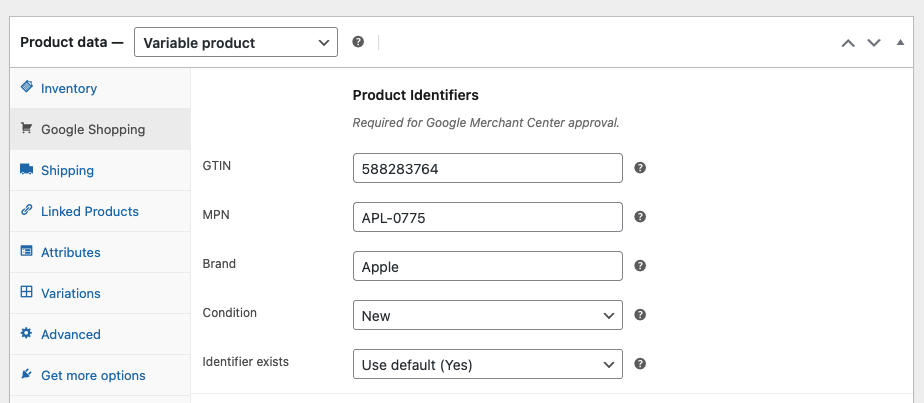 GTIN, Brand, and MPN fields in the WooCommerce product Inventory tab
The fields appear for both simple products and variations.
Step 3: Generate Your Product Feed
A product feed is an XML or CSV file containing all your product data. Google Merchant Center reads this feed to display your products.
Required Feed Fields
| Field | Description | Example |
|---|---|---|
| id | Unique product identifier | SKU-12345 |
| title | Product name | Blue Cotton T-Shirt |
| description | Product description | Soft cotton t-shirt… |
| link | Product page URL | https://store.com/product |
| image_link | Main product image | https://store.com/image.jpg |
| price | Product price with currency | 29.99 USD |
| availability | Stock status | in_stock |
| brand | Brand name | Nike |
| gtin | Product GTIN | 012345678901 |

Generating Feeds with a Plugin
The easiest way to generate feeds is with a plugin. Good options include:
- Google Shopping for WooCommerce - Free, includes GTIN fields
- Product Feed PRO - Popular, many templates
- CTX Feed - Feature-rich
With Google Shopping for WooCommerce:
- Go to WooCommerce > Settings > Google Shopping
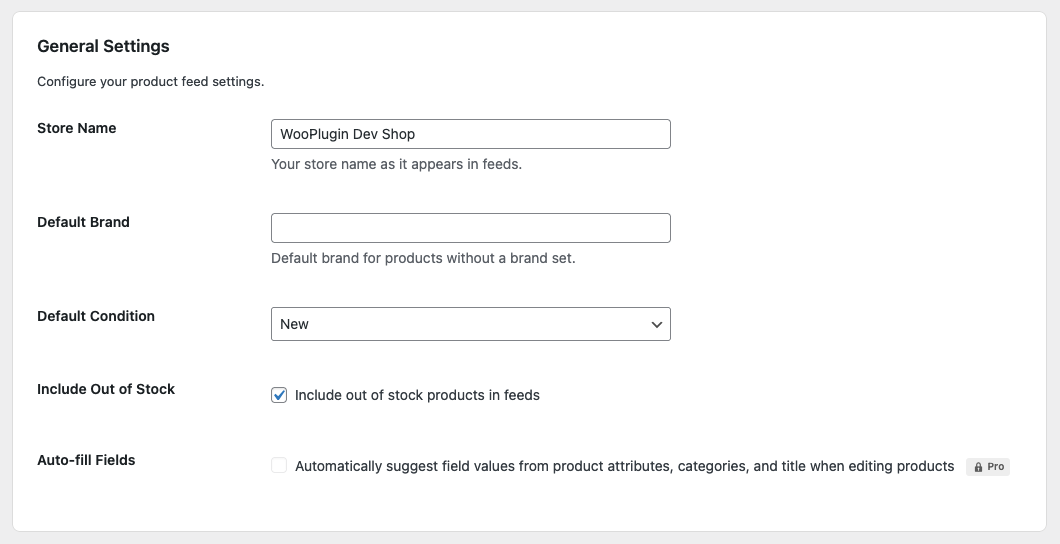 Plugin settings page in WooCommerce > Settings > Google Shopping
- Configure your store name and default brand
- Click “Generate Feed Now”
- Copy the feed URL
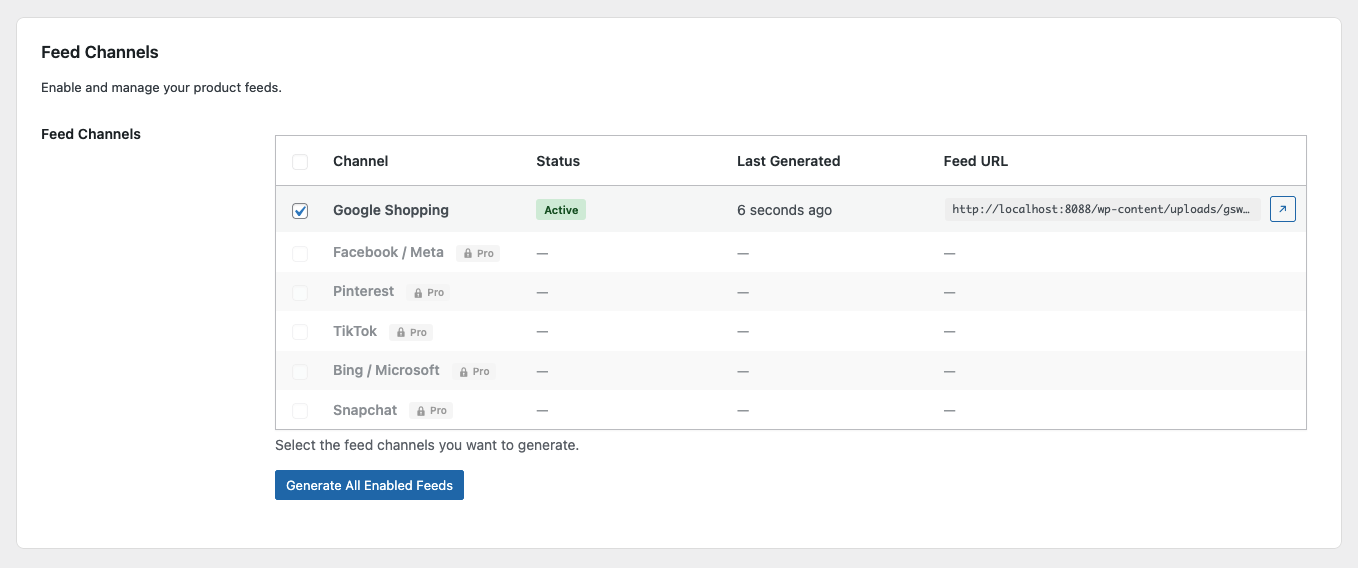 Your feed URL is displayed after generation
The plugin generates a Google-compliant XML feed automatically.
Step 4: Submit Your Feed to Google
Once your feed is generated:
- Log in to Google Merchant Center
- Go to Products > Feeds
- Click the + button to add a new feed
- Select your country and language
- Choose “Scheduled fetch” as the input method
- Enter your feed URL
- Set a fetch schedule (daily recommended)
- Save
Google will fetch your feed and process your products. Initial processing can take 24-72 hours.
Step 5: Fix Common Errors
After submitting your feed, check the Diagnostics section in Merchant Center for errors.
Missing GTIN
Error: “Missing value: GTIN”
Fix: Add GTIN to your products. If the product doesn’t have a GTIN (custom or handmade items), set identifier_exists to false.
Invalid Price
Error: “Invalid price”
Fix: Ensure prices include currency code (e.g., “29.99 USD” not just “29.99”).
Image Too Small
Error: “Image too small”
Fix: Use images at least 100x100 pixels. For apparel, use at least 250x250 pixels. Recommended: 800x800 or larger.
Missing Brand
Error: “Missing value: Brand”
Fix: Add brand to your products. Set a default brand in plugin settings for products without individual brands.
Optimization Tips
Write Better Titles
Your product title is crucial for matching search queries. Include:
- Brand name
- Product type
- Key attributes (color, size, material)
- Model number (if relevant)
Good: “Nike Air Max 90 Men’s Running Shoes - White/Black - Size 10”
Bad: “Cool Shoes”
Use High-Quality Images
- Use white or neutral backgrounds
- Show the product clearly
- Minimum 800x800 pixels
- No watermarks or promotional text
Keep Prices Competitive
Google shows price comparisons. If your prices are significantly higher than competitors, you’ll get fewer clicks.
Update Feed Regularly
Set your feed to update at least daily. Stale data (wrong prices, out-of-stock items) leads to disapprovals.
Free Listings vs. Paid Ads
Google Shopping offers two options:
Free Listings
- Appear in the Shopping tab
- No cost per click
- Lower visibility than paid ads
- Great for getting started
Shopping Ads (Paid)
- Appear in main search results
- Pay per click
- Higher visibility
- Requires Google Ads account
Recommendation: Start with free listings to validate your feed and products. Once you’re approved, consider paid ads for more visibility.
Troubleshooting
Products Not Showing
- Check Merchant Center diagnostics for errors
- Ensure products are approved (not “disapproved” or “pending”)
- Verify your website is verified and claimed
- Wait 24-72 hours for initial processing
Low Impressions
- Check your product titles match search queries
- Ensure competitive pricing
- Add more product attributes
- Consider running paid Shopping ads
Account Suspended
Common reasons:
- Policy violations (prohibited products)
- Misrepresentation (wrong prices, fake reviews)
- Missing required information
Fix the issues and request a review through Merchant Center.
Next Steps
- Install a feed plugin - Google Shopping for WooCommerce is free and includes GTIN fields
- Add product identifiers - GTIN, Brand, MPN to your products
- Generate your feed - Create your XML feed
- Submit to Merchant Center - Set up scheduled fetching
- Monitor and optimize - Check diagnostics and improve your data
FAQ
Q: Do I need GTINs for all products?
No. If your products don’t have GTINs (handmade, custom, or very old products), you can set identifier_exists to false. However, products with GTINs generally perform better.
Q: How long until my products appear?
Initial processing takes 24-72 hours. Some products may need manual review, which can take longer.
Q: Is Google Shopping free?
Free listings are available in the Shopping tab. For prominent placement in search results, you need paid Shopping ads.
Q: Which plugin should I use?
For most stores, Google Shopping for WooCommerce is a great choice - it’s free, includes GTIN fields, and generates compliant feeds without artificial limits.
Ready to get started? Download Google Shopping for WooCommerce - it’s free and includes everything you need to sell on Google Shopping.
Ready to sell on Google Shopping?
Get our free plugin with GTIN, Brand, and MPN fields. No product limits, no paywalls for essential features.