GTIN, UPC, EAN Explained: What WooCommerce Store Owners Need to Know
Understand product identifiers like GTIN, UPC, and EAN. Learn why Google Shopping requires them and how to add them to your WooCommerce products.

If you’re trying to sell on Google Shopping, you’ve probably encountered the term “GTIN” and wondered what it means. This guide explains everything WooCommerce store owners need to know about product identifiers.
What is a GTIN?
GTIN stands for Global Trade Item Number. It’s a unique identifier assigned to products for tracking and identification purposes. Think of it as a product’s fingerprint - no two products should have the same GTIN.
The GTIN system is managed by GS1, an international organization that sets standards for product identification.
Types of GTINs
GTIN is an umbrella term that includes several specific barcode formats:
| Type | Digits | Common Use |
|---|---|---|
| UPC-A | 12 | North America retail |
| EAN-13 | 13 | Europe and worldwide |
| EAN-8 | 8 | Small products |
| ISBN | 13 | Books |
| ITF-14 | 14 | Cartons/cases |
UPC (Universal Product Code)
UPC is the barcode format used primarily in the United States and Canada. If you’ve ever scanned a product at a store, you’ve used a UPC.
- 12 digits
- Starts with a number system digit (0-9)
- Includes manufacturer code and product code
- Ends with a check digit
Example: 012345678901
EAN (European Article Number)
EAN is the international version of UPC, used throughout Europe and most of the world.
- 13 digits (EAN-13) or 8 digits (EAN-8)
- Compatible with UPC (a UPC can be converted to EAN by adding a leading zero)
- Used globally
Example: 4006381333931
ISBN (International Standard Book Number)
ISBN is specifically for books and publications.
- 13 digits (ISBN-13, since 2007)
- Older books may have 10-digit ISBNs
- Can be used as GTIN for books
Example: 978-3-16-148410-0
Why Does Google Shopping Require GTINs?
Google requires GTINs for most products because:
- Product matching - Google matches your products to their catalog for richer data
- Price comparison - Users can compare prices across stores
- Trust - GTINs help verify products are legitimate
- Better visibility - Products with GTINs often rank higher in Shopping results
What Happens Without a GTIN?
If you don’t provide a GTIN:
- Your product may not appear in Shopping results
- You’ll see warnings in Google Merchant Center
- Your products may be disapproved
- You’ll miss price comparison features
How to Find Your Product’s GTIN
On the Product
Look for the barcode on the product packaging. The number below the barcode is typically the GTIN.
From Manufacturers
Contact your manufacturer or check their website. Many provide GTIN information in product documentation or data sheets.
Supplier Documentation
If you buy from wholesalers, GTINs are often listed in:
- Product catalogs
- Invoices
- Data feeds
Online Databases
Search product databases:
- Barcode Lookup
- UPC Database
- Manufacturer websites
What If Your Product Doesn’t Have a GTIN?
Some products legitimately don’t have GTINs:
Products Without GTINs
- Handmade items - Custom or artisan products
- Vintage items - Old products predating GTIN system
- Custom products - Made-to-order items
- Parts and components - Some industrial parts
- Store brands - Some private label products
Using identifier_exists = false
For products without GTINs, you can tell Google by setting identifier_exists to false in your feed. This prevents disapprovals for missing identifiers.
Note: Products with identifier_exists = false may have lower visibility than products with valid GTINs.
Getting Your Own GTINs
If you manufacture products or need GTINs, you can purchase them from GS1:
- Join GS1 in your country
- Get a Company Prefix
- Assign GTINs to your products
Cost: Starting around $250/year for small businesses (varies by country).
Website: www.gs1.org
Brand and MPN: The Other Identifiers
Along with GTIN, Google may require:
Brand
The product’s brand or manufacturer name. Required for most products.
Examples:
- Nike
- Apple
- Samsung
Tips:
- Use the official brand name
- Be consistent across products
- For unbranded products, use your store name
MPN (Manufacturer Part Number)
The manufacturer’s own identifier for the product. Useful when GTIN isn’t available.
Examples:
- ABC-123
- XYZ-789-BLK
When to use MPN:
- Product has no GTIN
- As additional identifier alongside GTIN
- For parts and components
Adding GTINs to WooCommerce
WooCommerce doesn’t include GTIN fields by default. You need a plugin.
Using Google Shopping for WooCommerce
- Install the Google Shopping for WooCommerce plugin (free)
- Edit any product
- Go to the Inventory tab
- Find the GTIN, Brand, and MPN fields
- Enter the values
- Save
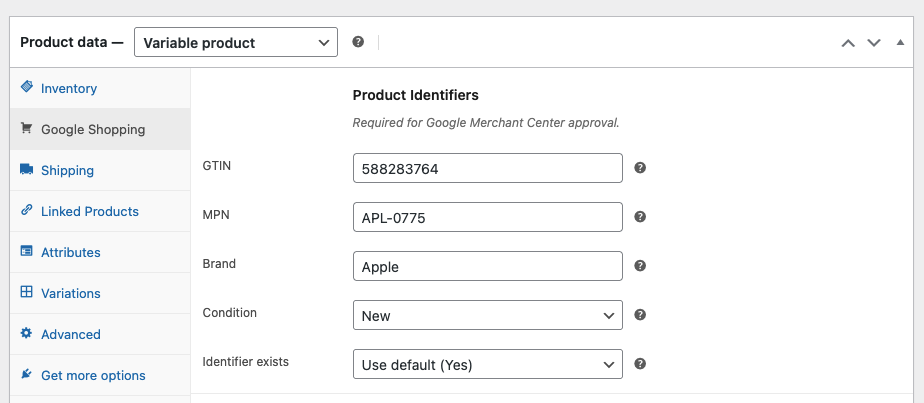 GTIN, Brand, and MPN fields in the WooCommerce Inventory tab
The fields work for both simple products and variations.
Best Practices
- Be accurate - Wrong GTINs cause disapprovals
- Be consistent - Use the same format across products
- Include all identifiers - GTIN, Brand, and MPN when available
- Verify - Double-check GTINs match the actual product
GTIN Validation
GTINs have a check digit that validates the number. Invalid GTINs will be rejected by Google.
How to Validate a GTIN
The last digit of a GTIN is a check digit calculated from the other digits. You can validate GTINs at:
Common GTIN Errors
- Wrong length - UPC should be 12 digits, EAN should be 13
- Invalid check digit - Number doesn’t pass validation
- Incorrect format - Includes spaces or dashes
- Wrong product - GTIN doesn’t match the actual product
FAQ
Q: Can I make up a GTIN?
No. GTINs must be obtained through GS1 or provided by the manufacturer. Fake GTINs will cause account suspensions.
Q: My supplier gave me a GTIN but Google says it’s invalid. Why?
The GTIN may be incorrect, or it may not exist in Google’s database. Verify with the manufacturer or check on barcodelookup.com.
Q: Do I need GTINs for variations?
Yes. Each variation (different size, color, etc.) should have its own unique GTIN.
Q: Can I use the same GTIN for multiple products?
No. Each unique product must have its own GTIN. Using the same GTIN for different products will cause issues.
Q: What if I resell products but don’t know the GTINs?
Contact the manufacturer or search the product online. Many products have GTINs listed on retailer websites or databases.
Summary
| Identifier | What It Is | Required? |
|---|---|---|
| GTIN | Unique product number (UPC, EAN, ISBN) | Yes, for most products |
| Brand | Manufacturer or brand name | Yes |
| MPN | Manufacturer’s part number | Recommended |
Key takeaways:
- GTINs are required for most products on Google Shopping
- Find GTINs on packaging, from manufacturers, or in databases
- Use
identifier_exists = falseonly for products that truly don’t have GTINs - Use a plugin like Google Shopping for WooCommerce to add GTIN fields
Need to add GTINs to your WooCommerce products? Google Shopping for WooCommerce adds free GTIN, Brand, and MPN fields - no paywall, no limits.
Ready to sell on Google Shopping?
Get our free plugin with GTIN, Brand, and MPN fields. No product limits, no paywalls for essential features.