WooCommerce Variable Products on Google Shopping: Complete Guide
Learn how to set up variable products with variations for Google Shopping. Handle GTINs, sizes, colors, and ensure each variation appears correctly.

Variable products are common in WooCommerce—think t-shirts in multiple sizes and colors, or phones with different storage options. But getting variations to work correctly with Google Shopping requires understanding how Google handles product variants. This guide covers everything you need to know.
How Google Handles Product Variations
Google Shopping treats each variation as a separate product listing. A t-shirt available in 3 sizes and 4 colors creates 12 individual listings in Google Merchant Center.
The Item Group ID Concept
Google uses item_group_id to link variations together:
- All variations of the same product share the same
item_group_id - Each variation has a unique
id - Google displays variations together in Shopping results
Example:
| id | item_group_id | title | color | size |
|---|---|---|---|---|
| SKU-001-BLK-S | TSHIRT-001 | Cotton T-Shirt - Black - Small | Black | S |
| SKU-001-BLK-M | TSHIRT-001 | Cotton T-Shirt - Black - Medium | Black | M |
| SKU-001-WHT-S | TSHIRT-001 | Cotton T-Shirt - White - Small | White | S |
Setting Up Variable Products in WooCommerce
Step 1: Create the Parent Product
- Go to Products → Add New
- Select “Variable product” from the Product Data dropdown
- Fill in the general product information:
- Product name (base name without variation details)
- Description
- Categories and tags
- Main product image
Step 2: Create Attributes
Attributes define what varies between your products.
- Go to the Attributes tab
- Add attributes like:
- Color
- Size
- Material
- Storage capacity
- Check “Used for variations”
- Enter all possible values (e.g., Small | Medium | Large)
Step 3: Generate Variations
- Go to the Variations tab
- Select “Create variations from all attributes”
- Click Go and confirm
- WooCommerce creates all possible combinations
Step 4: Configure Each Variation
For each variation, set:
- SKU - Unique identifier
- Price - Can differ per variation
- Stock - Individual stock levels
- Image - Variation-specific image
- GTIN - Unique barcode (critical for Google Shopping)
GTINs for Variable Products
This is where many stores struggle. Each variation needs its own unique GTIN.
Why Each Variation Needs a GTIN
A black t-shirt in size Small is a different product than a black t-shirt in size Medium. They have different barcodes at retail, and Google treats them as separate products.
Where to Find Variation GTINs
From your supplier:
- Wholesale catalogs list GTINs per size/color
- Data feeds from suppliers include variation GTINs
- Contact manufacturers for product data sheets
From the product:
- Each size/color has its own barcode on packaging
- Scan or manually record each variation’s barcode
If you manufacture:
- Purchase GTINs from GS1 for each variation
- One base product with 12 variations needs 12 GTINs
Adding GTINs to Variations in WooCommerce
With the Google Shopping for WooCommerce plugin:
- Edit the variable product
- Go to the Variations tab
- Expand each variation
- Find the GTIN, Brand, and MPN fields
- Enter the unique GTIN for that specific variation
- Save changes
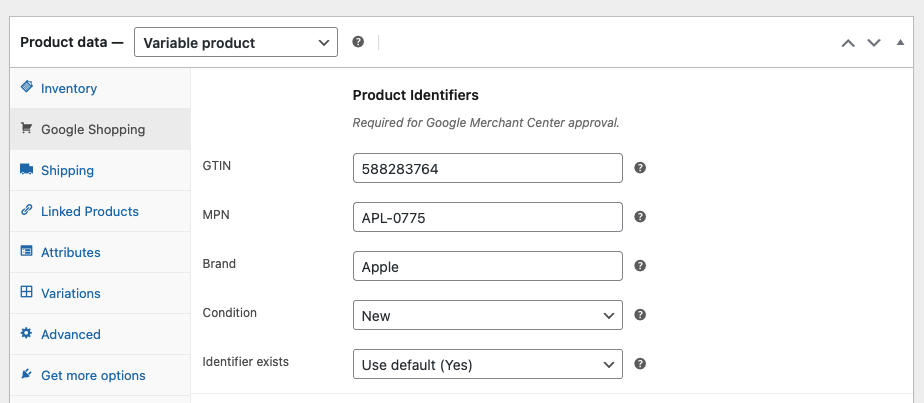 Each variation has its own GTIN, Brand, and MPN fields
What If You Don’t Have GTINs for Variations?
If your variations don’t have individual GTINs:
- Set
identifier_existsto “No” for those variations - Include MPN (Manufacturer Part Number) instead
- Always include the Brand
Note: Products without GTINs may have reduced visibility in Google Shopping.
Required Attributes for Variations
Google requires specific attributes depending on your product category.
Apparel Products
| Attribute | Required | Example |
|---|---|---|
| color | Yes | Black, Navy Blue |
| size | Yes | S, M, L, XL, 32x30 |
| gender | Yes | Male, Female, Unisex |
| age_group | Yes | Adult, Kids, Infant |
| size_type | Sometimes | Regular, Petite, Plus |
| size_system | Sometimes | US, UK, EU |
Electronics
| Attribute | Required | Example |
|---|---|---|
| color | If varies | Space Gray, Silver |
| capacity | If varies | 128GB, 256GB |
| material | Sometimes | Aluminum, Plastic |
Other Products
| Attribute | When Required | Example |
|---|---|---|
| color | If product varies by color | Red, Blue |
| size | If product varies by size | Small, Large |
| pattern | If product varies by pattern | Striped, Solid |
| material | If significant differentiator | Cotton, Polyester |
Feed Structure for Variations
When your feed is generated, each variation becomes a separate entry.
Sample Feed Output
<item>
  <g:id>SKU-001-BLK-S</g:id>
  <g:item_group_id>TSHIRT-001</g:item_group_id>
  <g:title>Cotton T-Shirt - Black - Small</g:title>
  <g:color>Black</g:color>
  <g:size>S</g:size>
  <g:gtin>012345678901</g:gtin>
  <g:availability>in_stock</g:availability>
  <g:price>29.99 USD</g:price>
</item>
<item>
  <g:id>SKU-001-BLK-M</g:id>
  <g:item_group_id>TSHIRT-001</g:item_group_id>
  <g:title>Cotton T-Shirt - Black - Medium</g:title>
  <g:color>Black</g:color>
  <g:size>M</g:size>
  <g:gtin>012345678902</g:gtin>
  <g:availability>in_stock</g:availability>
  <g:price>29.99 USD</g:price>
</item>
How the Plugin Handles This
The Google Shopping for WooCommerce plugin automatically:
- Uses the parent product SKU as
item_group_id - Uses variation SKU as unique
id - Pulls variation-specific GTIN, price, stock, image
- Appends variation attributes to the title
- Includes color, size, and other attributes in the feed
Common Mistakes with Variable Products
1. Using Parent GTIN for All Variations
Wrong: Entering one GTIN on the parent product and expecting it to apply to all variations.
Right: Enter unique GTINs on each individual variation.
2. Missing Variation Images
Wrong: Only setting the main product image, leaving variations without images.
Right: Upload specific images for each color/style variation. Sizes don’t necessarily need different images.
3. Inconsistent Attribute Values
Wrong: Using “Sm”, “Small”, and “S” interchangeably.
Right: Use consistent attribute values: always “S” or always “Small”.
4. Not Including Required Attributes
Wrong: Selling apparel without gender and age_group.
Right: Always include all required attributes for your product category.
5. Duplicate SKUs
Wrong: Multiple variations with the same SKU.
Right: Every variation needs a unique SKU that becomes its unique id in the feed.
Troubleshooting Variation Issues
”Missing value: GTIN” on Variations
Cause: GTIN not set on individual variations.
Fix:
- Edit product → Variations tab
- Expand each variation
- Add GTIN to each one
”Invalid value for item_group_id”
Cause: The parent product doesn’t have a SKU set.
Fix: Set a SKU on the parent variable product (not just on variations).
Variations Not Appearing in Feed
Cause: Variations might be out of stock or disabled.
Fix:
- Check stock status on each variation
- Ensure variations are enabled (not set to “Disabled” in dropdown)
- Verify each variation has a price
Wrong Image Showing
Cause: Variation image not set.
Fix: Upload images specifically to each variation, especially for color variants.
Best Practices
Title Optimization
Include variation details in titles:
Good: “Nike Air Max 90 Men’s Running Shoe - White/Black - Size 10”
Avoid: “Nike Air Max 90” (no variation details)
Image Strategy
- Use variation-specific images for visual differences (colors, patterns)
- Main product image can be used for non-visual variations (sizes)
- Minimum 800x800 pixels
- Show the specific color/variant in the image
Stock Management
- Keep variation stock accurate
- Out-of-stock variations automatically marked in feed
- Consider hiding out-of-stock variations from your store
Pricing Variations
Different variations can have different prices:
- Size XL might cost more
- Premium colors might have upcharge
- Ensure feed reflects actual variation prices
FAQ
Q: Do I need a GTIN for every single variation?
Ideally, yes. Each variation is a distinct product with its own barcode. If variations don’t have GTINs, set identifier_exists to “No” for those specific variations.
Q: How many variations can a product have?
WooCommerce can handle hundreds of variations, and Google will accept them all. However, for usability, consider if customers really need 100+ options or if you should split into separate products.
Q: What if my variations have the same price?
That’s fine. Set the same price on each variation. Google still treats them as separate products.
Q: Do variations inherit the parent Brand?
With the Google Shopping for WooCommerce plugin, you can set Brand on the parent or individual variations. If set on parent, it typically applies to all variations unless overridden.
Q: Can I exclude certain variations from the feed?
Yes. You can set specific variations to “Out of stock” to exclude them, or use Pro features for advanced filtering rules.
Need to add GTIN fields to your WooCommerce variations? Google Shopping for WooCommerce adds free GTIN, Brand, and MPN fields to both parent products and individual variations.
Ready to sell on Google Shopping?
Get our free plugin with GTIN, Brand, and MPN fields. No product limits, no paywalls for essential features.